Track my orders
Goal: know at any time where each order stands, who paid what, and what to deliver this week.
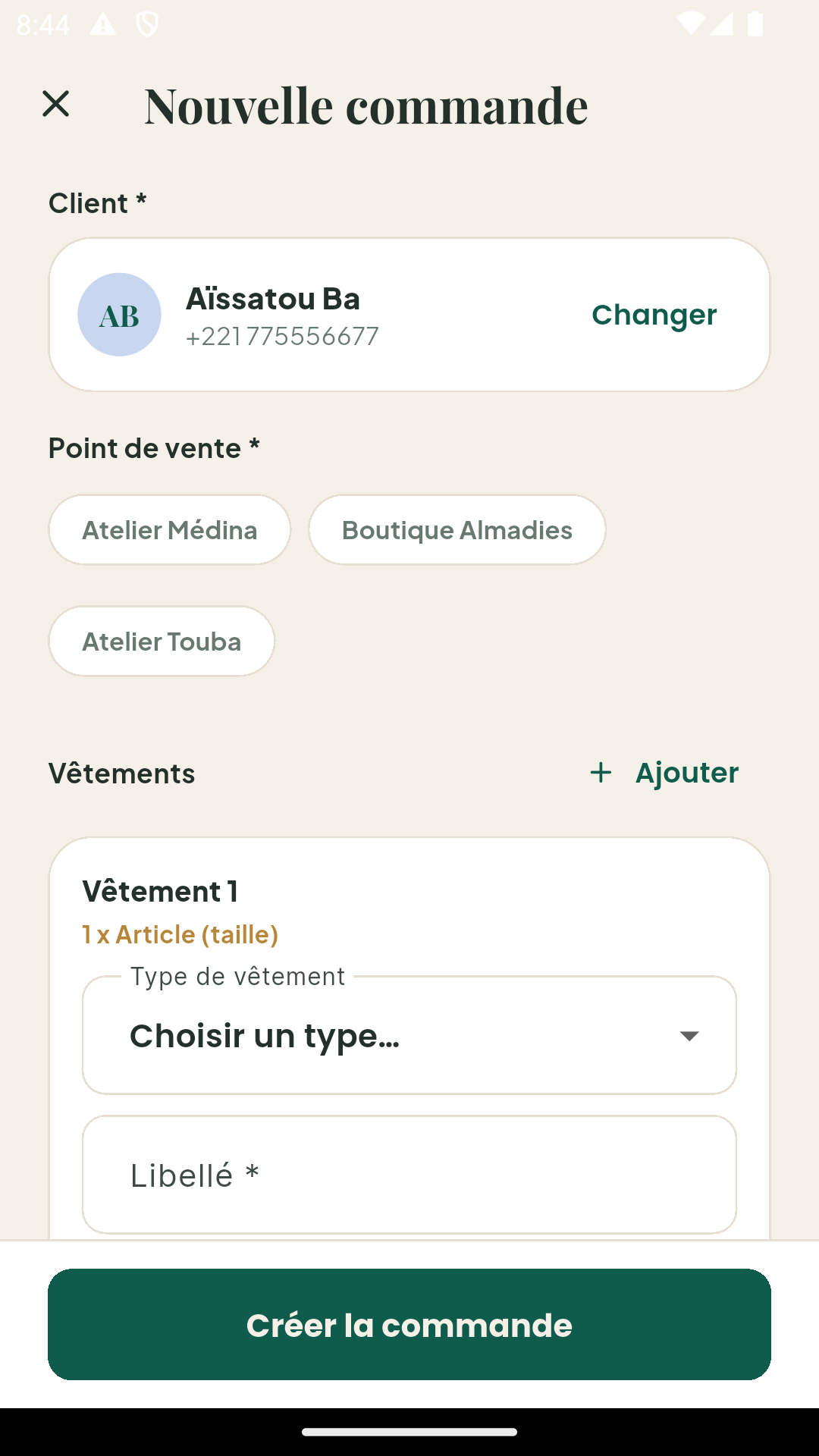
Create an order (on mobile)
- From the dashboard, tap + then New order.
- Select the customer.
- Describe the model (e.g. “3-piece suit”, “Embroidered grand boubou”) and attach a measurement sheet if you have one.
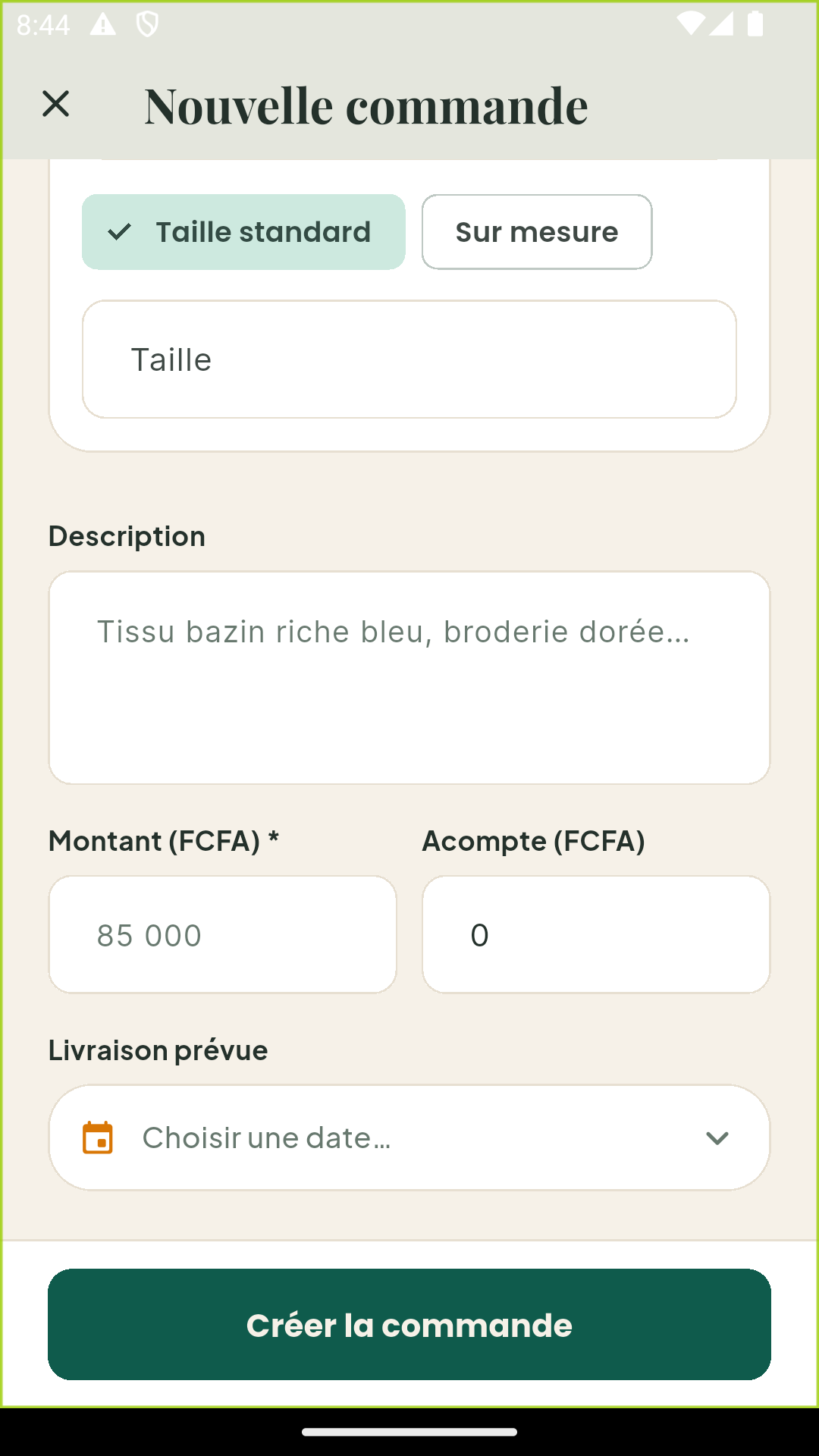
- Enter the total amount and the deposit paid (in FCFA).
- Pick the expected delivery date — it drives the automatic reminders.
- Save: the order gets a unique reference (e.g.
KLM-0237).
Order statuses
| Status | Meaning |
|---|---|
| Pending | Order registered, production not started yet |
| In progress | In production (cutting, sewing, finishing) |
| Fitting | Waiting for or undergoing a customer fitting |
| Done | Ready, awaiting delivery |
| Delivered | Handed to the customer, balance collected |
| Cancelled | Order abandoned |
Changing the status
- On mobile: open the order, tap the status and pick the new one. You can also record an additional deposit.
- On the back office: in the order list, Actions menu → Change status.
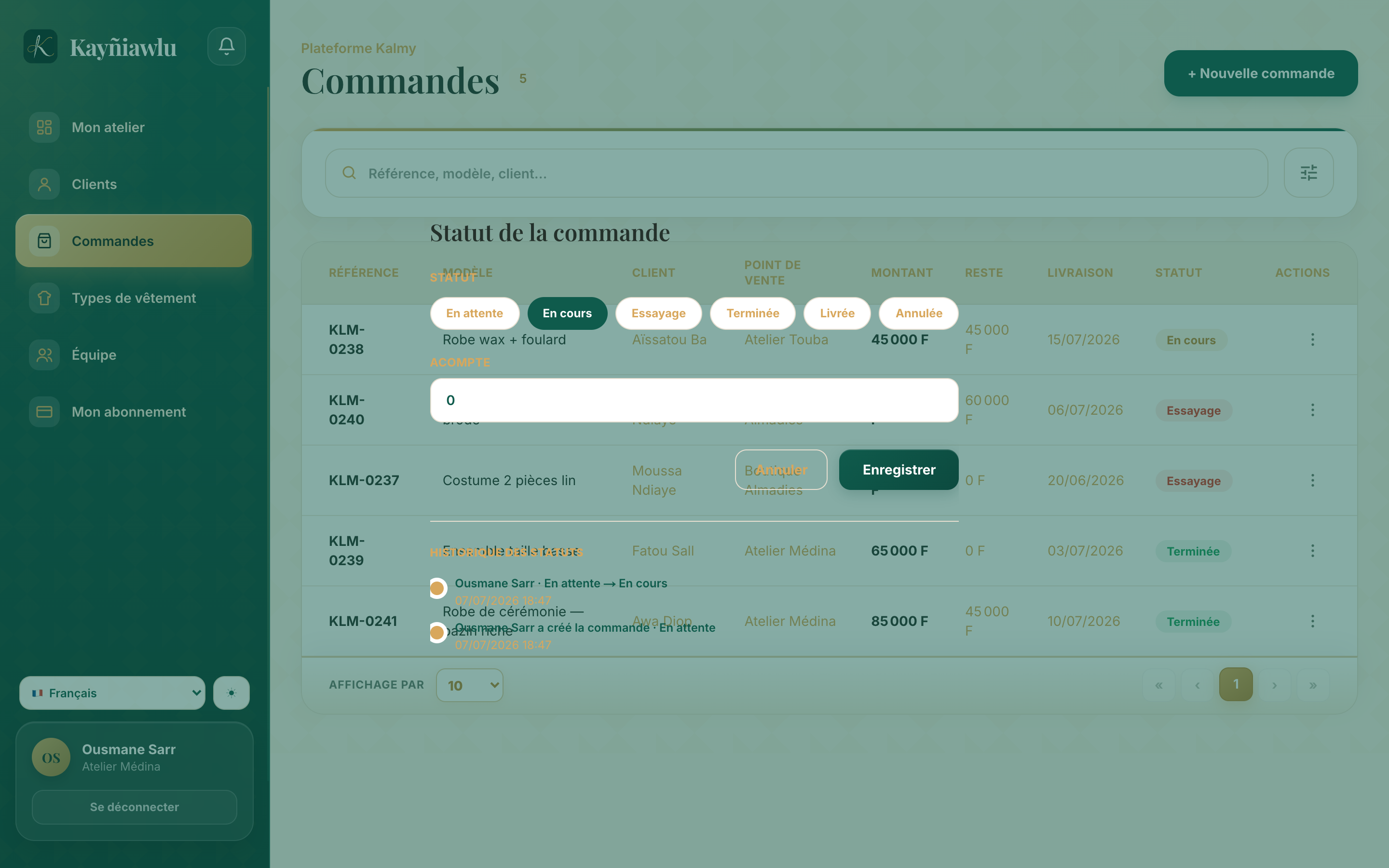
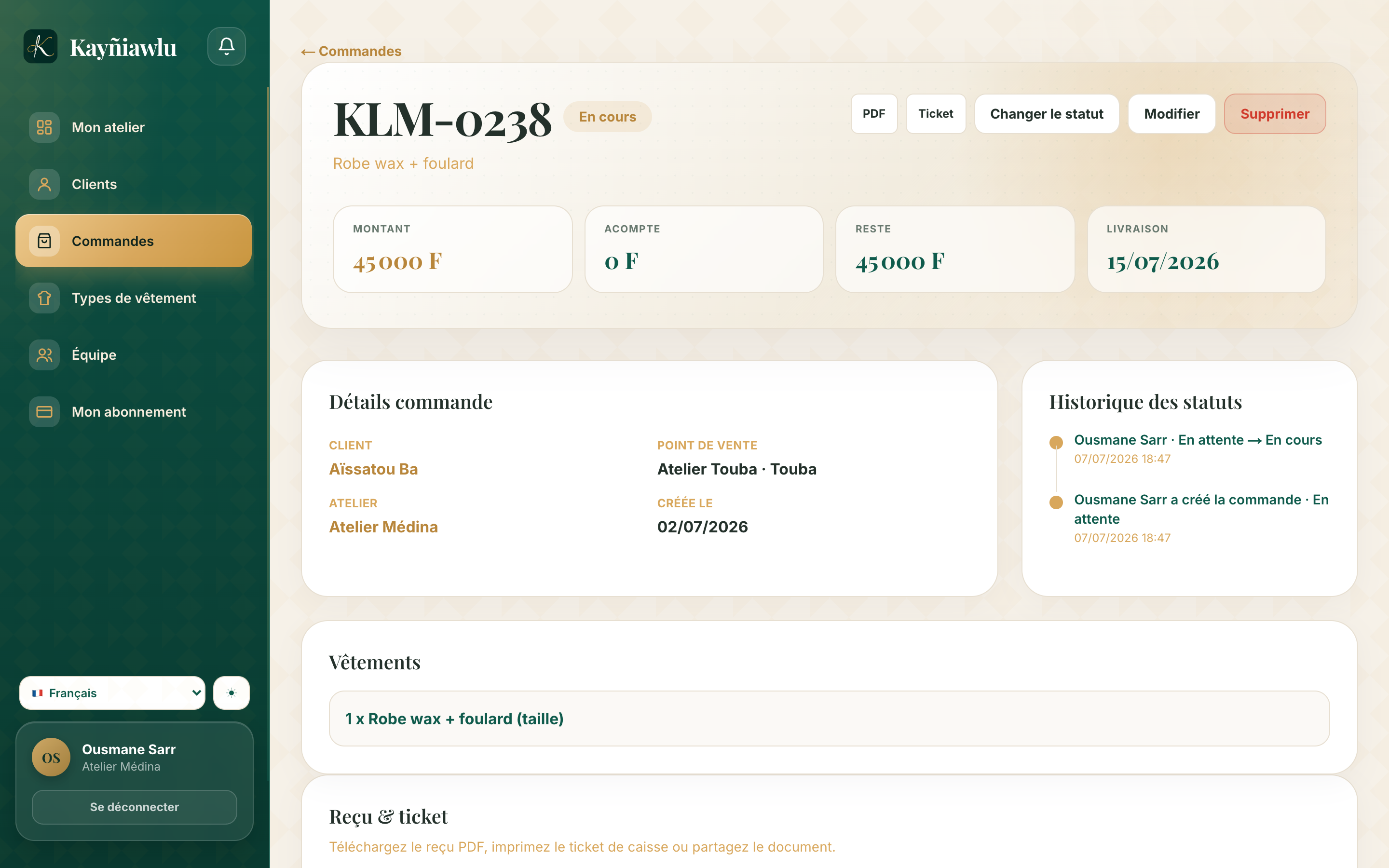
Every change is dated: the order page shows the full timeline.
Track the money
Each order shows the total amount, the deposit paid and the remaining balance. The dashboard aggregates these amounts for an overview.
Generate a receipt
From an order page, generate a PDF receipt to share with the customer (WhatsApp, print). The receipt includes the reference, the model, the amounts and your workshop.
Filter and find
The order list can be filtered by status, period and sales outlet, and searched by reference, customer or model.
Orders and sales outlets
Each order belongs to a sales outlet. Employees only see the orders of the outlets assigned to them — see Team and sales outlets.